How to build an AI agent without code: an email agent in n8n
How to build an AI agent without code, step by step: an n8n agent that reads new Gmail, labels it and drafts replies, on a 14-day trial with no card.

To build an AI agent without code, connect a trigger, a chat model and some tools in a visual builder such as n8n. The email agent below reads every new Gmail message, applies a label and saves a draft reply, following instructions written in plain English. It can't send anything, and n8n's 14-day trial requires neither a credit card nor an API key.





Can you build an AI agent without code?
Yes, because a no-code builder lets you assemble an agent from menus instead of writing a program. You choose what starts it, which model does the thinking and which tools it may use, then describe its job in everyday language.
Unlike an ordinary automation, which repeats identical steps, an agent makes decisions: this one reads each email and chooses which tools to call. Our explainer on what agentic AI means covers this in detail.
We use n8n because its documentation names every button, and its trial needs no credit card. If you'd prefer a finished assistant, see our guide to AI agents for small businesses.
Before you start
- A Gmail account and some test emails to send yourself.
- Two Gmail labels for the agent, such as Reply needed and FYI, since it can only apply labels that exist.
Build the email agent in n8n, step by step
- 01Start a trial and a workflow. On n8n's pricing page, choose Start free trial. In the editor, select the create button in the side menu, pick workflow, then Add first step...
- 02Add the Gmail trigger. Choose Gmail's Message Received trigger. Under Credential to connect with, create a credential and click Sign in with Google. Set Poll Times to Every X, with a Value of 5 and a Unit of Minutes. Send yourself a test email and select Execute Workflow to load it as sample data.
- 03Add the AI Agent node. Add an AI Agent node, set its prompt to Define below, and drag the sender, subject and message ID from the INPUT pane into Prompt (User Message).
- 04Pick a model. Add a chat model from the Included in n8n section and select Use Gateway credits as its credential. The trial includes free Gateway credits.
- 05Let it read and label. Click the agent's Tools connector and add three Gmail tools: one set to Message and Get, with Simplify off so it reads the whole email, and two set to Add Label, each with one label in Label Names or IDs. In all three, click the star beside Message ID for the model to fill.
- 06Let it draft, never send. Add a fourth Gmail tool set to Draft and Create. Star Subject and Message, then add the To Email and Thread ID options and star them too. Skip Send and Reply, which both send email.
- 07Write its rules. In the agent's options, add System Message and paste the rules below.
- 08Test it. Send yourself one email that needs an answer and one that doesn't, select Execute Workflow, then check Gmail for labels and a draft.
- 09Publish it. Click Publish at the top of the canvas, and the agent checks Gmail every five minutes on its own.
Rules to give your agent
The System Message teaches the agent its job, so keep each instruction short and specific, like this starting set you can copy and adapt:
- You sort new email for [your name] at [your business].
- Read each email in full with the Get tool first.
- Label it Reply needed if the sender asks something of me. Otherwise, label it FYI.
- Don't draft replies to newsletters, receipts or alerts.
- Draft friendly replies of three to five sentences, signed [your name].
- Never invent prices, dates or promises, and never send email.
Watch it for a few days, and whenever a label or draft is wrong, add one instruction that covers the case.
Is n8n free?
On n8n's own servers, it's free only during the 14-day Cloud trial, which includes 1,000 executions. Each workflow run counts as one execution, however many tools the agent calls. Afterwards, Starter costs $24 a month, or $20 billed yearly, for 2,500 executions. Without an upgrade, n8n deletes the trial instance, although you get 90 days to download your workflows.
The Community Edition stays free permanently, but you host it on your own server. Because Sign in with Google and Gateway credits aren't available when you self-host, you'd create your own Google sign-in app and model API key. For the paid plans, see our n8n, Zapier and Make price comparison.
The same agent in four tools at a glance
Normal monthly prices of each cheapest paid plan, from the makers' pages on Nov 8, 2026.
| Tool | Free start | Paid from, a month | How you build it | What stops it sending |
|---|---|---|---|---|
 n8n | 14-day trial, no card | $24 | Nodes on a canvas | No Send or Reply tool |
 Gumloop | 14-day Pro trial, card needed | $37 | An agent with instructions | Custom tool rules |
 Lindy | $50 of credits for 7 days | $29.99 per user | Built-in routines you switch on | Drafts wait for your approval |
 Zapier | Free plan can't run AI steps | $29.99 | An AI step inside a Zap | Require approval before running |
How to build it in Gumloop, Lindy or Zapier
1. n8n: the build above
n8n demands the most effort, because you connect every part yourself on a canvas.
2. Gumloop: an agent with no canvas
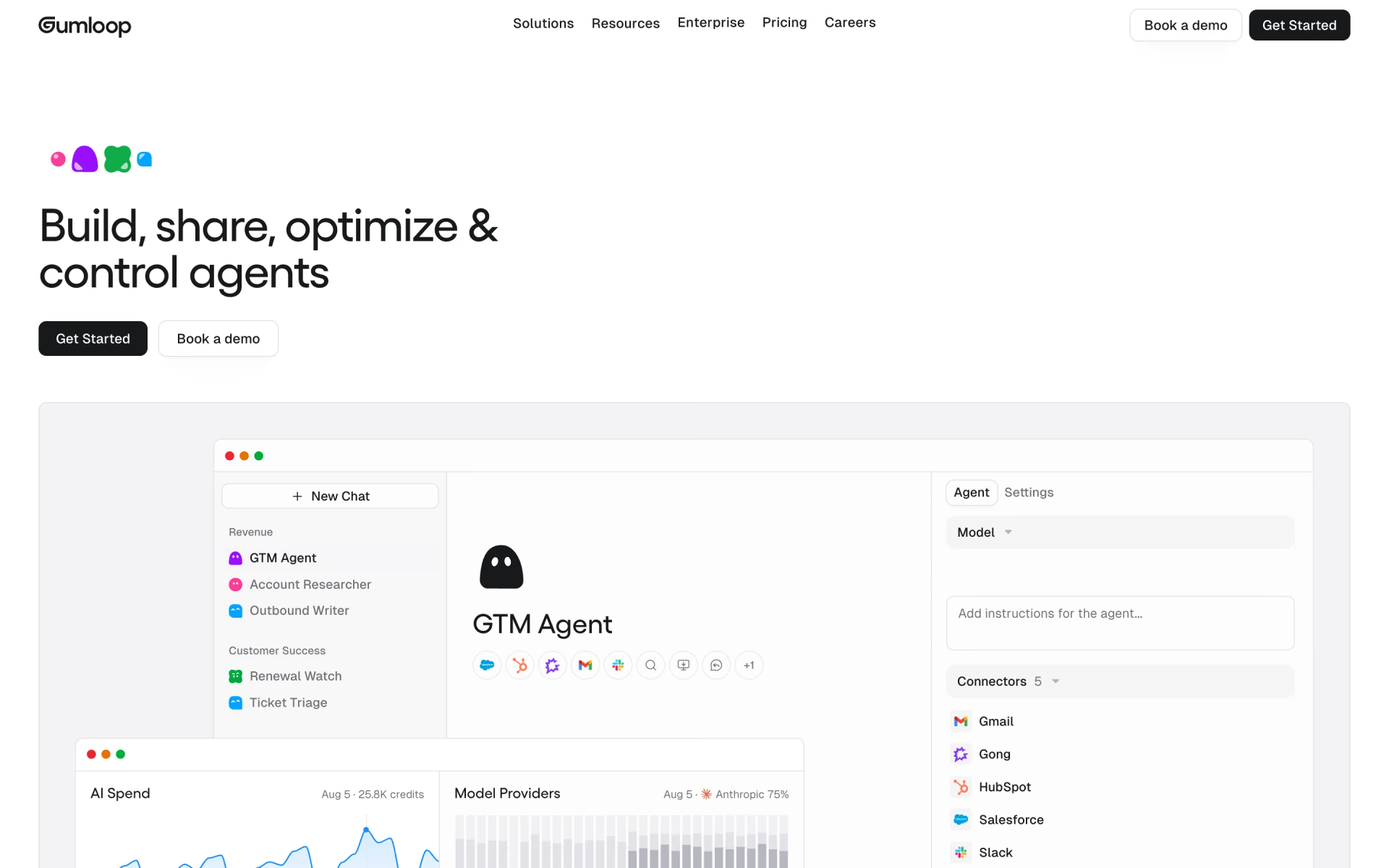
Gumloop replaces the canvas with a single agent, configured on its Agent tab, where you write instructions and add Gmail under Connectors. Choosing Custom in Tool Management allows labels and drafts while denying sending. On the Triggers tab, choose Add trigger, App Trigger and Gmail, set Label to Inbox, and type @ to insert fields like Email Body.
Gumloop has no free plan, only a 14-day Pro trial that needs a card, after which Pro costs $37 a month for 20,000 credits.
3. Lindy: switch it on instead
Lindy already performs this job, so you switch it on instead of building it. On the Routines page, turn on Email labeling and give each label, such as To Respond, plain-English Instructions. Then turn on Email drafting and describe your tone under Drafting instructions.
New accounts get $50 of credits for 7 days without a card, and paid plans then start at $29.99 a month per user.

4. Zapier: an AI step inside a Zap
Zapier is moving its standalone Agents into AI by Zapier, a step inside an ordinary Zap. Start the Zap with Gmail, add the AI step, and click + Add tool under Tools and Knowledge for each Gmail action. For any tool that changes data, you can turn on Require approval before running.
The free plan can't publish this step, and Professional starts at $29.99 a month for 750 tasks. Because each tool call costs the model rate again, labelling and drafting one email on the default Premium tier uses 15 tasks.

How we checked
On Nov 8, 2026, we read n8n's documentation for every node, setting and button in these steps, plus its pricing page. We checked Gumloop's, Lindy's and Zapier's documentation and pricing pages the same day.
We haven't run this build ourselves, so if your screen looks different, follow the maker's current documentation.
Questions people ask
Can I build an AI agent for free?
Yes, for a while: n8n Cloud's 14-day trial needs no card, and n8n's self-hosted Community Edition is free permanently. Lindy offers $50 of credits for 7 days, while Gumloop's trial requires a card.
Do I need an API key?
Not on n8n Cloud, where Use Gateway credits pays the model provider from your credit balance. Self-hosted n8n needs your own key from a provider such as OpenAI, Anthropic or Google.
Can I build an AI agent with ChatGPT or Claude?
Yes, by using the models behind ChatGPT and Claude inside a builder like n8n. Choose an OpenAI or Anthropic chat model, which Gateway credits cover, and the builder supplies the trigger and inbox tools a chat app lacks.
Will the agent send emails without asking me?
No, because this agent has no tool that sends email, so the most it can do is save a draft. If you add Send or Reply later, route them through n8n's Human review step so every message waits for your approval.