 HeyClicky
Learn a new app by voice with HeyClicky
Learn Figma, DaVinci Resolve or any new app by asking HeyClicky out loud. It sees your screen and points at the next click, in under 15 minutes.
What you need
HeyClicky sees your screen only when you press its hotkey. It sends the screenshot to Anthropic or OpenAI for the answer and doesn't keep the image.
Step 1: Install HeyClicky
3 minHeyClicky lives in a small notch at the top of your screen, so it stays out of the way while you work.
- Go to heyclicky.com and click download for mac or download for windows.
- On a Mac, open
HeyClicky.dmgand install the app. On Windows, run the installer. - Sign up, allow the microphone and screen recording access it asks for, then take the short tour.
You should see the tour asking you to say hello out loud, then drawing on your screen.
On a Mac, HeyClicky can't see your screen?
Open System Settings > Privacy & Security, turn HeyClicky on in the screen recording list, then quit and reopen it.
This app was called Clicky until May 2026. The old clicky.so address now leads to heyclicky.com.
Step 2: Learn your talk shortcut
2 minEverything starts with one held shortcut, so it's worth getting it into your fingers first.
- On a Mac, hold Control + Option, ask a question, then let go. HeyClicky answers out loud.
- Prefer typing? Double-tap Control to open a text box instead.
- Your keys, on Mac or Windows, are listed in Settings > Shortcuts.
You should see HeyClicky listening while you hold the keys, then a spoken reply.
The shortcut clashes with another app?
Pick new keys in Settings > Shortcuts. Any held combo or a double-tap works.
Step 3: Ask for a walkthrough
4 minA clear goal lets HeyClicky plan the steps and point at each click as you go.
- Open the app you want to learn, with a real file in it.
- Hold your talk keys and say your goal, as in the example below.
- Do each step it points to. When you click the right spot, it moves on to the next one.
Say thisI'm new to [APP]. Walk me through [YOUR GOAL] one step at a time, and point at each thing I need to click.
You should see circles and pointers drawn on your screen, and a spoken first step.
It lost track after you did something by hand?
Say "continue". HeyClicky keeps the goal and the steps you've done across a pause, for walkthroughs of up to 15 steps.
Step 4: Circle what confuses you
3 minPointing at the exact button or panel gets a sharper answer than describing it in words.
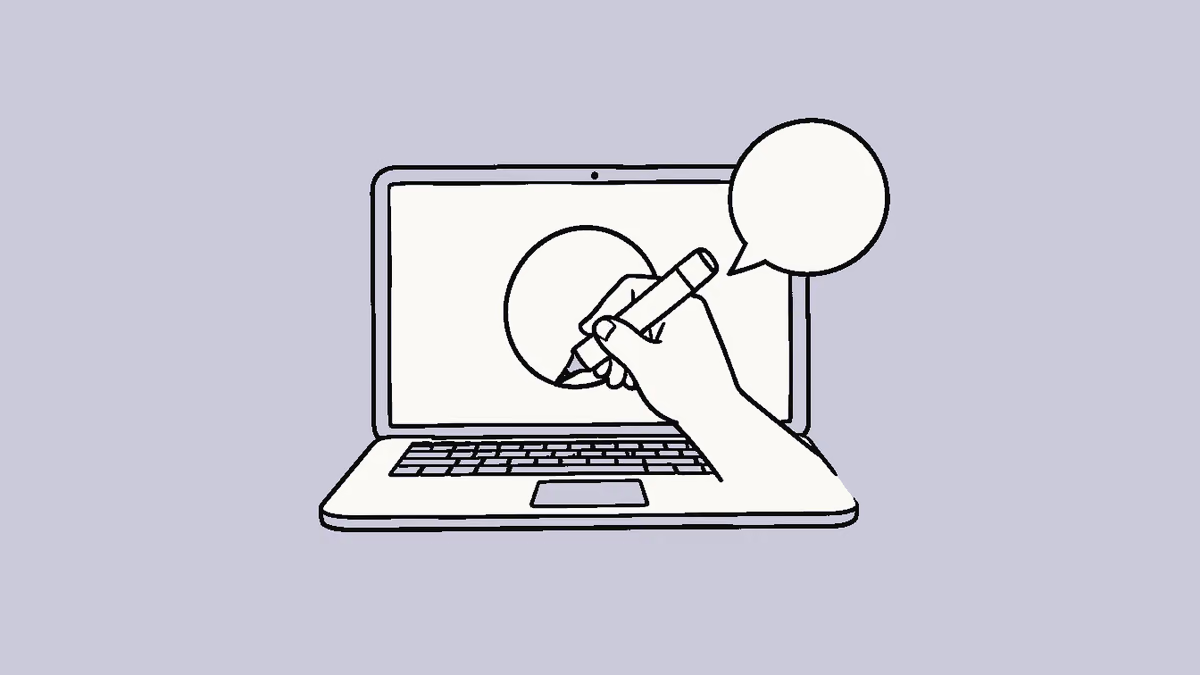
- Hold your talk keys and draw on the screen to circle the part you mean.
- Ask about it, for example: What does this panel do?
- Ask follow-ups. HeyClicky remembers what was on your screen earlier in the chat.
You should see an answer about the part you circled, sometimes with a picture card beside it.
The answer is about the wrong part of the screen?
Draw a tighter circle around just that item, and name it in your question.
Step 5: Tune how it teaches you
2 minAnswers that match your pace keep you working in the app instead of waiting on long replies.
- Ask for what you want, such as shorter answers, a yes or no first, or simpler words. HeyClicky remembers it.
- In Settings > Voice, set the speech speed from 0.5x to 1.5x, or turn on Captions while HeyClicky talks.
You should see shorter or slower replies, with captions at the bottom of the screen if you turned them on.
You're running low on messages?
Ask HeyClicky how many messages you have left. Free has 25 talk messages a month, and Pro has unlimited talk.
You get
A voice tutor that sees your screen, points at the next click and explains any part you circle
Try next


Did this guide work for you?
Thanks. It helps us fix the steps.
Sources
0 of 5Next: Install HeyClicky