 Google AI Studio
Clone your voice with Gemini 3.8 Flash TTS
Turn a 30-second recording of your own voice into a saved custom voice in Google AI Studio, then direct it line by line.

What you need
Voice replication is not offered in AI Studio in Illinois, Texas, the EEA, the UK, Switzerland or India.
Step 1: Open the speech playground
1 minAI Studio’s speech page is free to try, and voice replication is built in.
- Go to aistudio.google.com/generate-speech and sign in with your Google account.
- In the Model menu, pick Gemini 3.8 Flash TTS.
- Open the Voice menu and pick Voice replication.
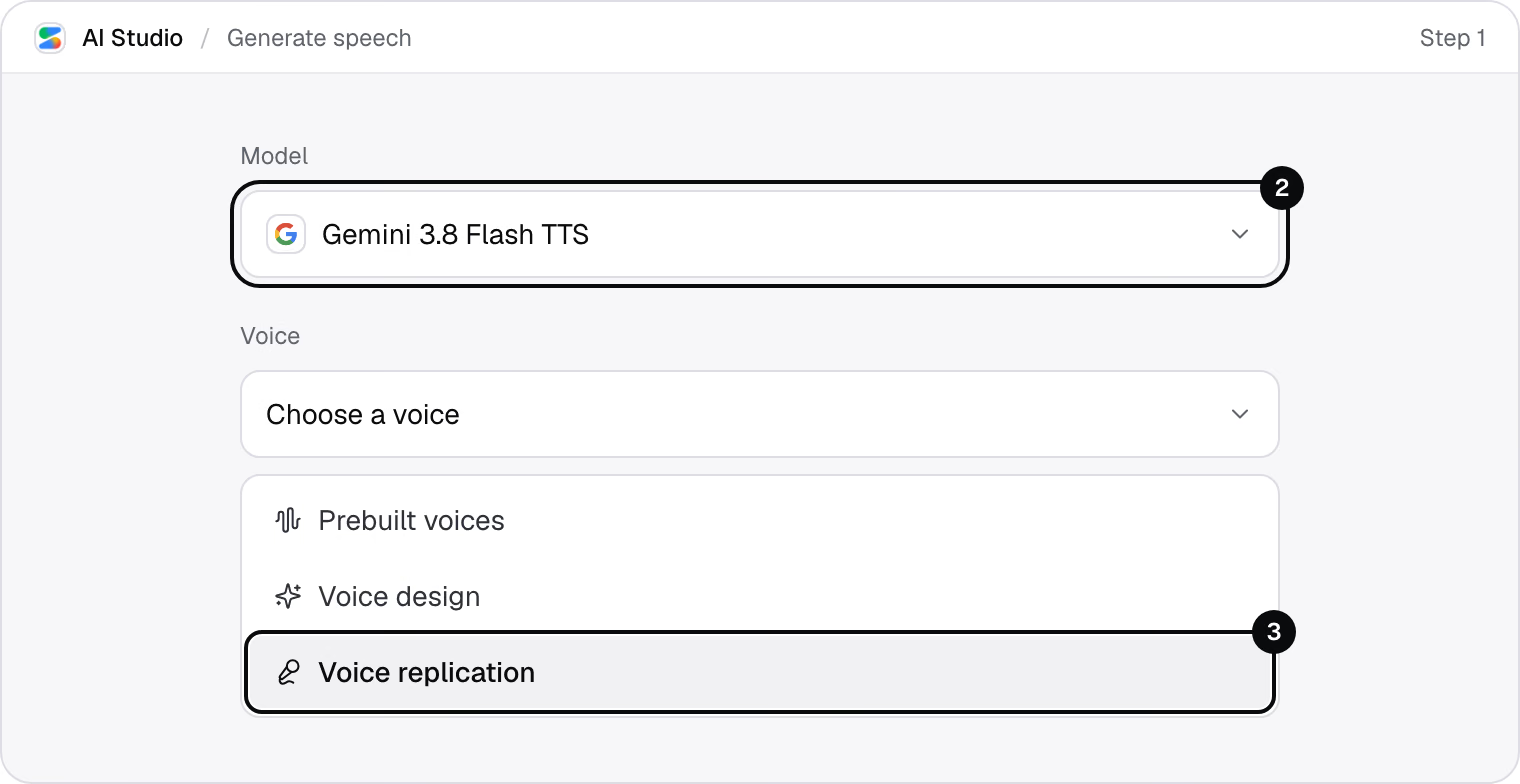
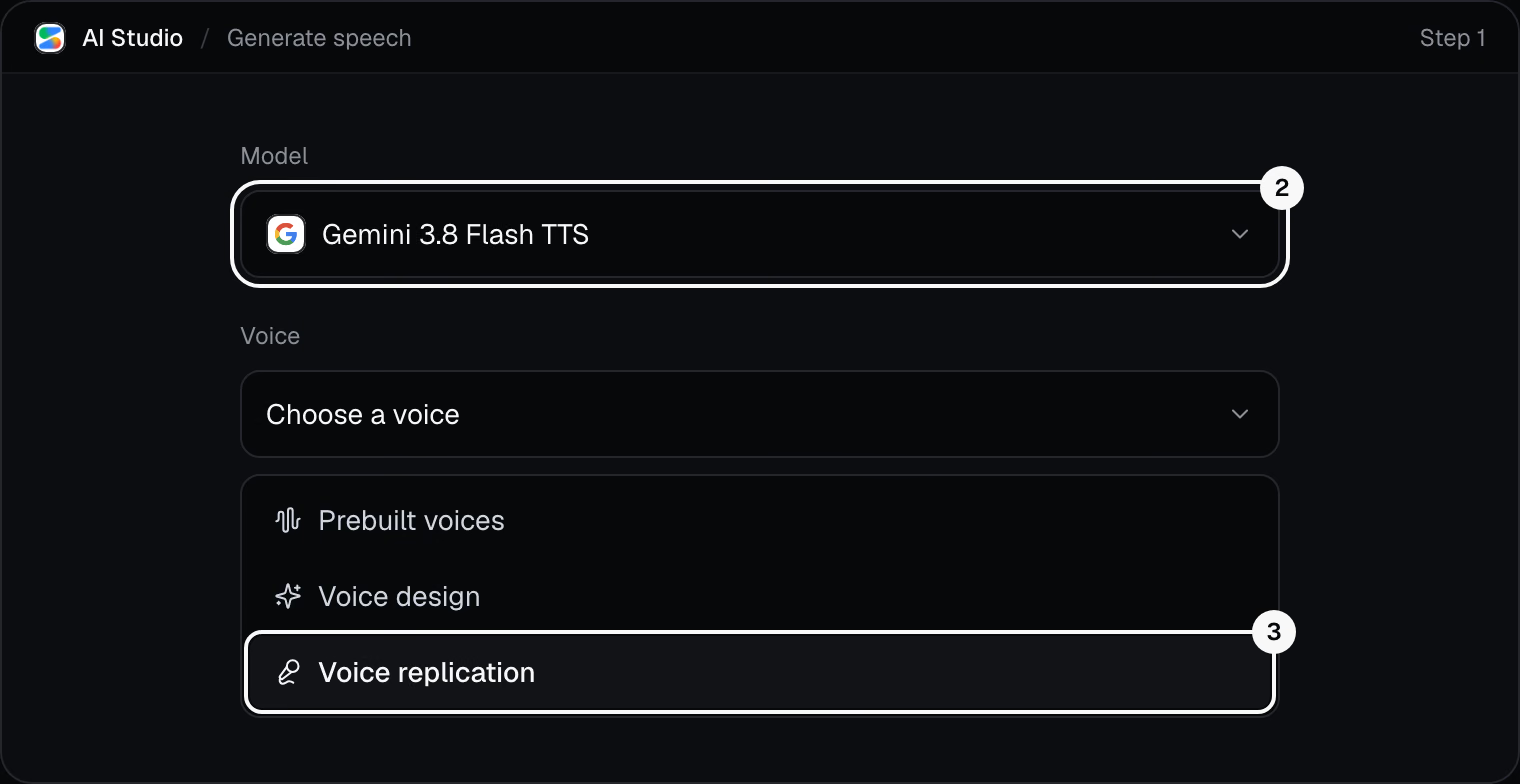
You should see a request for two recordings: a reference clip and a consent clip.
No Voice replication option?
It is not offered in AI Studio in Illinois, Texas, the EEA, the UK, Switzerland or India. The Gemini API does offer it in the EEA, the UK and Switzerland, on a paid-tier project.
Step 2: Record a reference clip
3 minThis is the voice Gemini learns from, and 10 to 30 seconds is enough.
- Sit in a quiet room, close to the mic, with no music, echo or second voice.
- Click Record and talk naturally for 10 to 30 seconds, about anything. Or upload a clip you already have.
- Play it back, and record again if you hear noise or another voice.
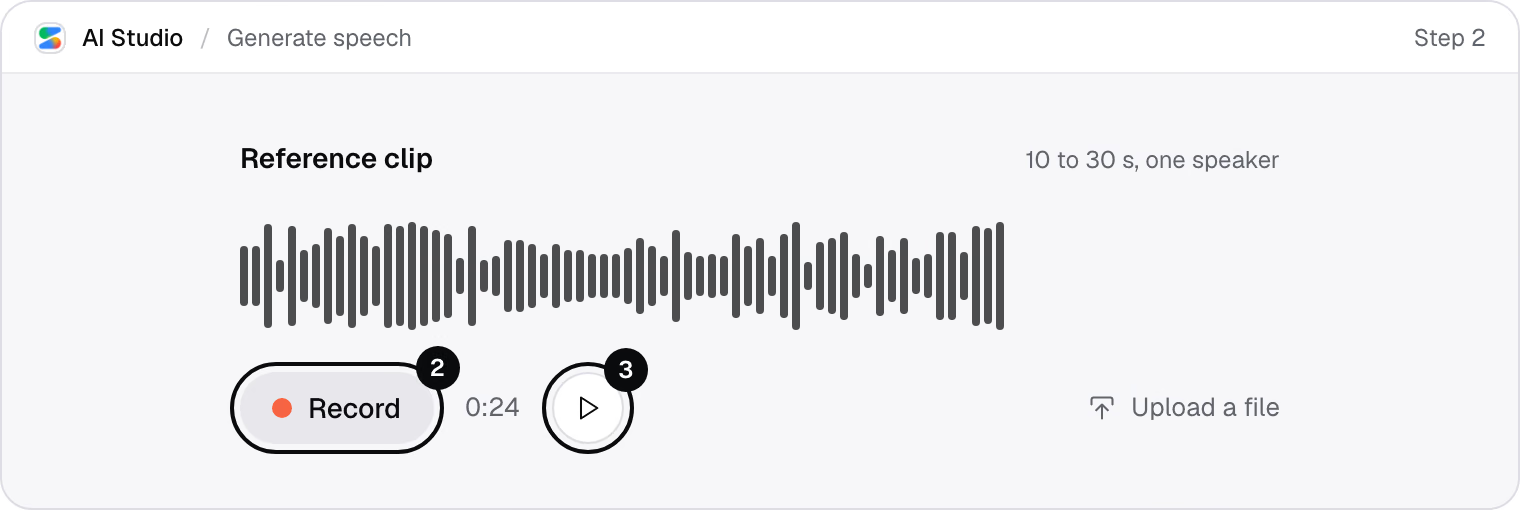
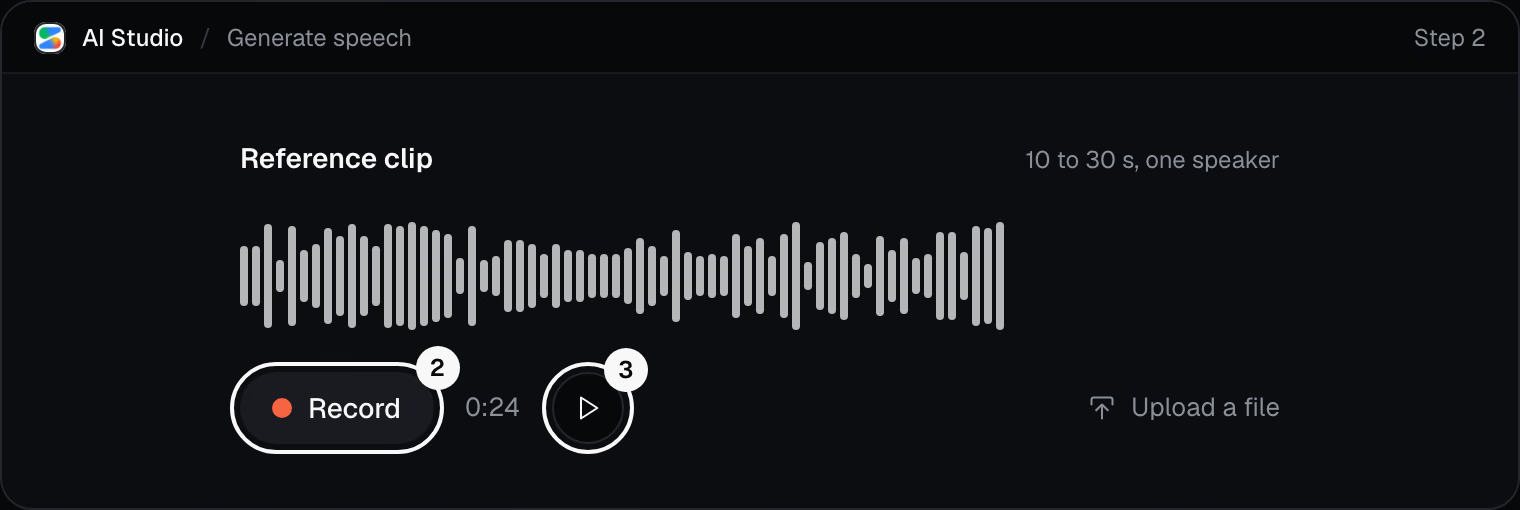
You should see a clip of 10 to 30 seconds, with one clear voice.
The clip was rejected?
Gemini only takes real recordings. It turns down synthetic speech, and audio that already carries a SynthID or C2PA watermark.
Step 3: Record the consent clip
1 minGoogle checks that the owner of the voice agrees. Without this clip, no voice is made.
- Read the consent line AI Studio shows you, in the same voice as the reference clip.
- Use the same mic, in the same room, as in step 2.
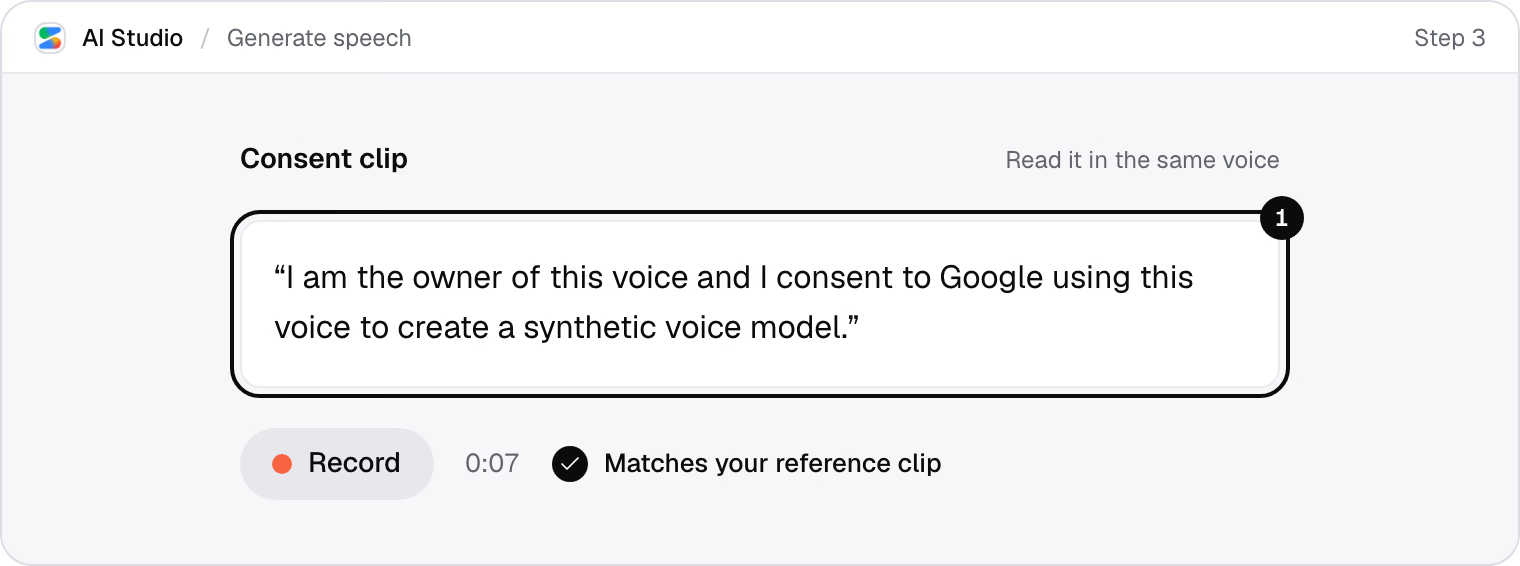
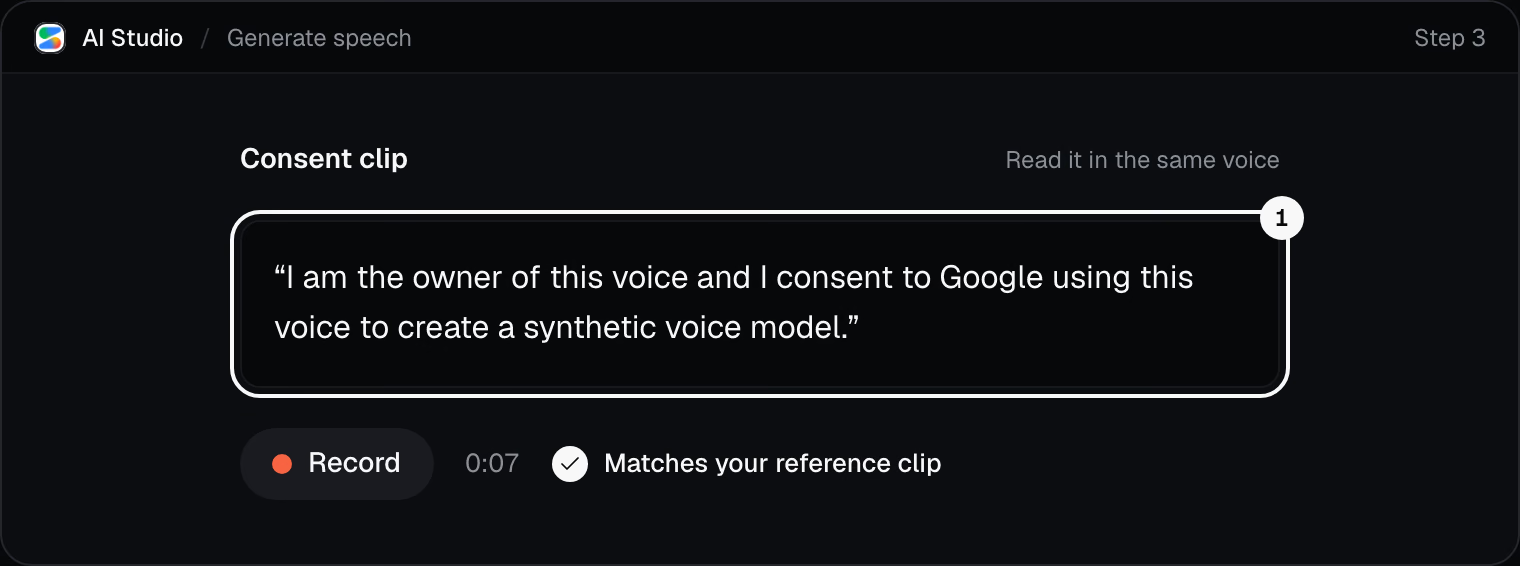
You should see a check mark: the two clips match, and the preview opens.
Verification failed?
The two clips were probably recorded in different conditions. Record both again, back to back, with the same mic in the same room.
Step 4: Preview and save the voice
2 minA saved voice sounds the same every time you use it, in every project.
- Play the preview.
- Name the voice, for example My voice, and save it.
- Building an app? Copy its voice_ ID to use the voice in the Gemini API.
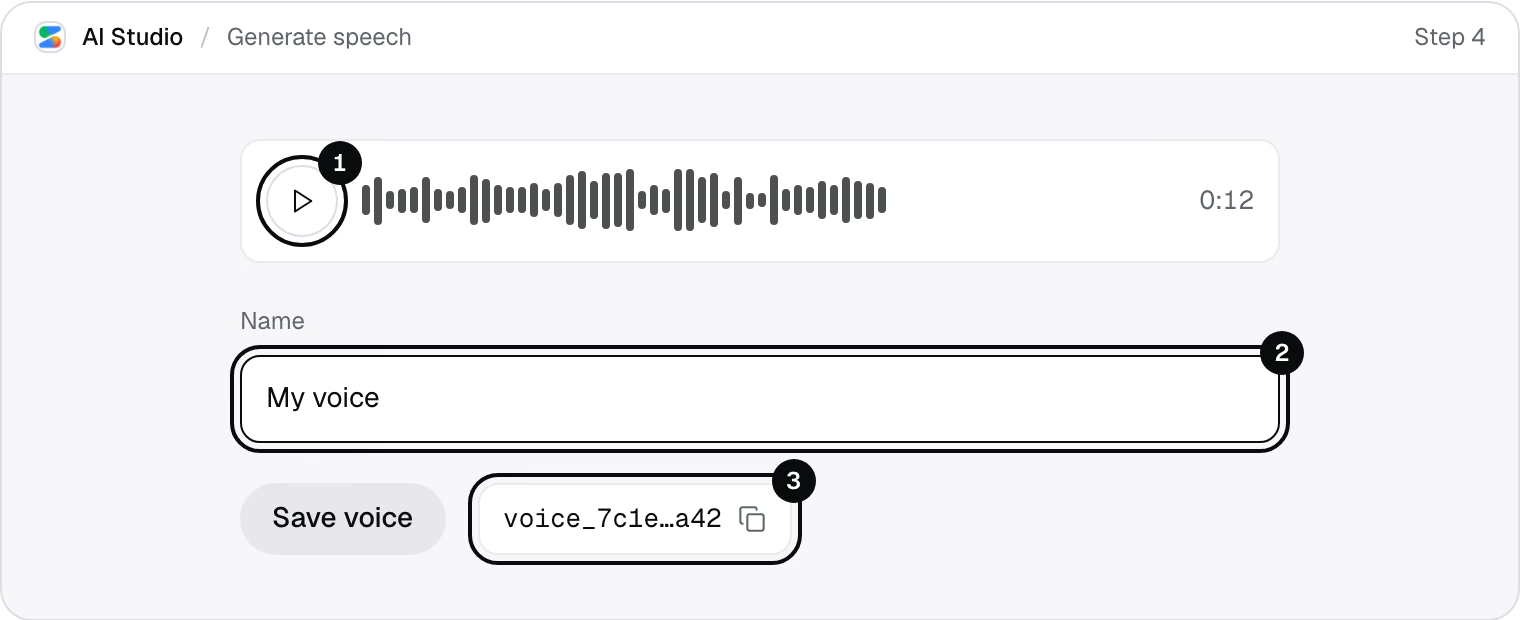
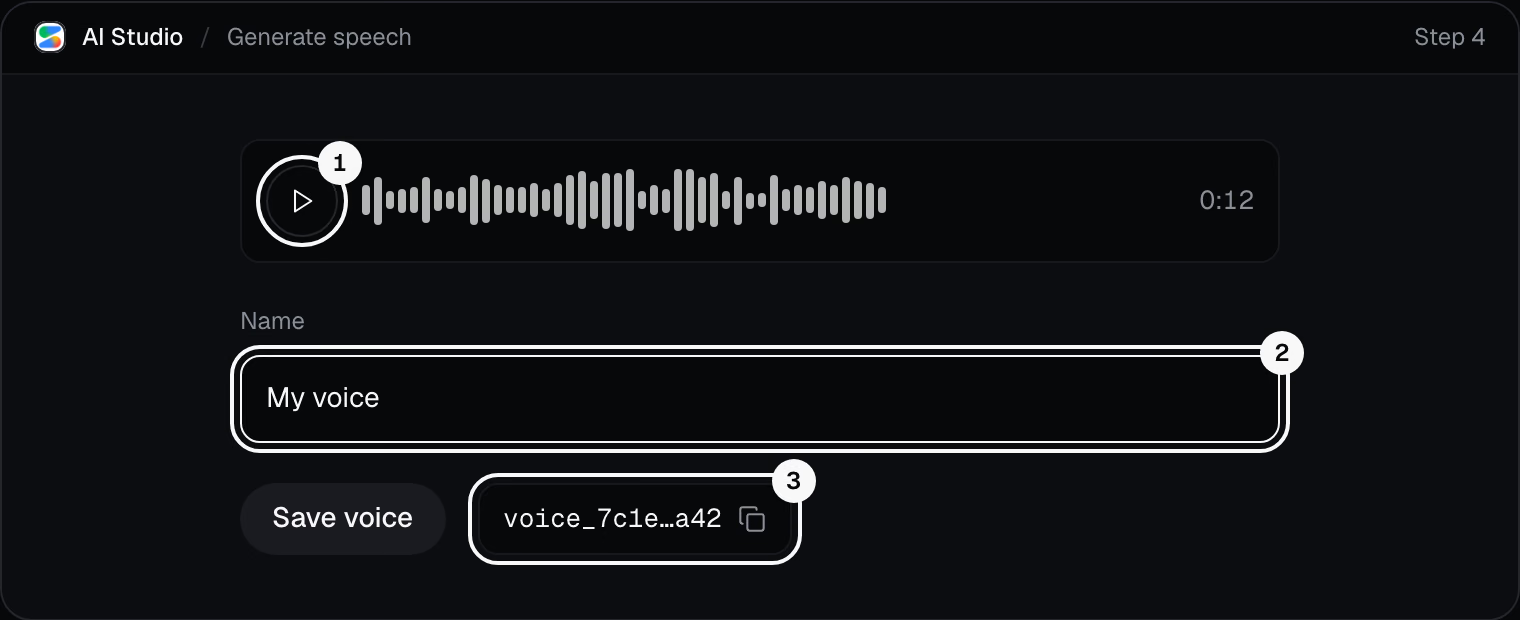
You should see My voice at the top of your voice list, marked Custom.
Saved voices are kept for a year after you last use them, and each project holds up to 200.
Step 5: Generate speech with direction
3 minOne style line sets the delivery, and tags put pauses and sounds exactly where you want them.
- In the Voice menu, pick My voice.
- Paste the script below, with its style line on top.
- Click Run and listen.
Your scriptRead this as a calm product walkthrough, warm and unhurried. Here's what's new this week. <short pause> Three features shipped, and one of them changes how you'll work. <short pause> The third one is the one to watch.
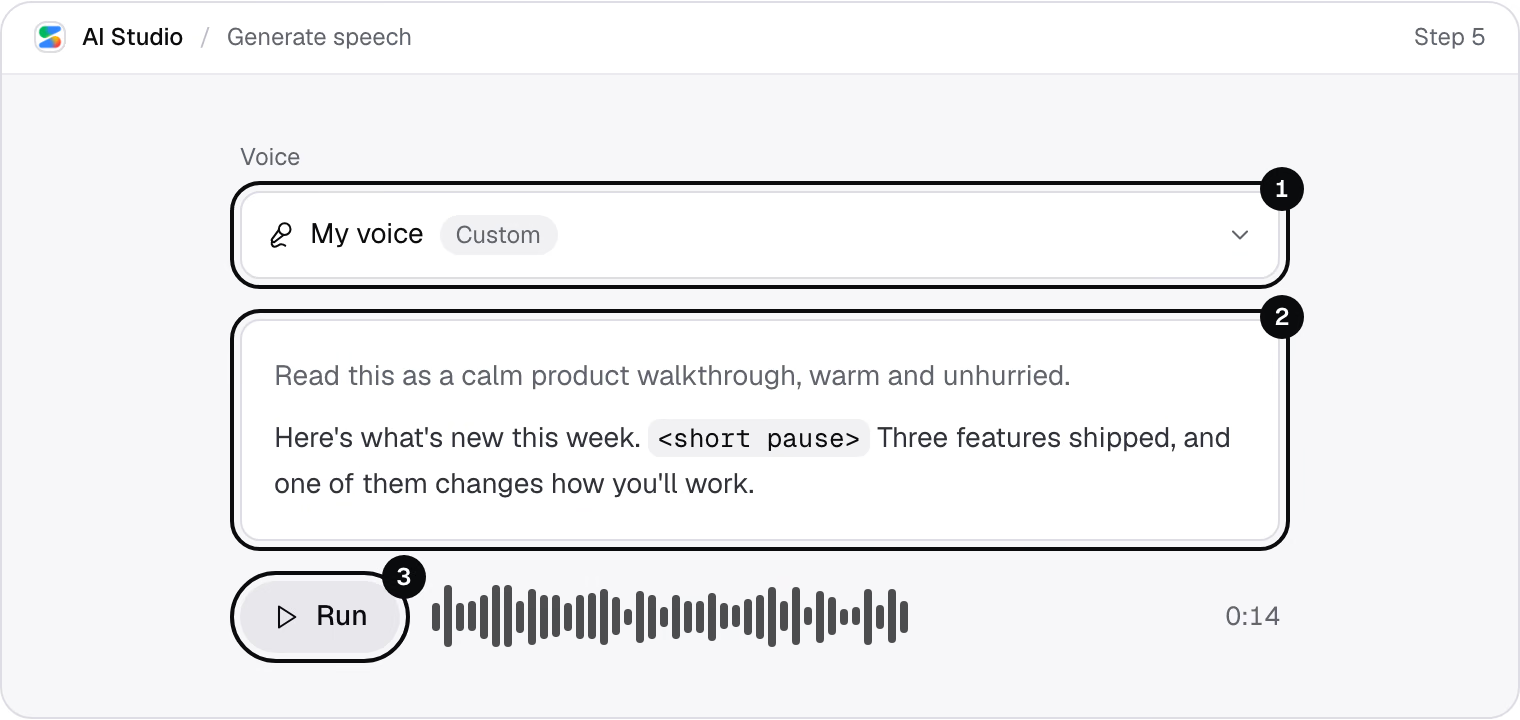
You should see your script, read in your voice, the way you directed it.
It sounds flat or odd?
Keep the delivery in one style line at the top. Leave fixed traits such as age or accent out of it, and skip notes like “keep the same voice”.
Tags go right where the sound should happen:
<short pause>for a beat of silence,<laugh>,<sigh>or<gasp>for a sound.


You get
A saved custom voice that sounds the same in every project
Try next



Did this guide work for you?
Thanks. It helps us fix the steps.